Terminal Basics
What is the terminal? The terminal is a text based interface for interacting with your computer. Open up a terminal and open up a file explorer and place them side by side.
These two programs have much of the same functionality except the terminal adds superpowers like being able to run a second (third, fourth, etc) program from within itself and have said programs affect the files/directories/operating system. You'll see this in effect when you get to git.
Go ahead and close the file explorer and try not to open it through these exercises.
How to read the following lesson:
If I say "type $ [somecommand]" or "type > [somecommand]":
-
Do not type the
$or the> -
Do not type the space
-
DO type the words that follow and press Enter
Open a command line application
- Mac: On OS X, open your Applications folder, then open the Utilities folder. Open the Terminal application.
- Windows: Open the start menu, and type
terminal+ Enter. - Linux, Ubuntu: Click "Search your computer" on your launcher. Search for "terminal" and select it.
- If your OS or distro isn't listed, go to this website and type in "where is terminal on [YOUR OS]". Press enter.
When you open the application, you should see something like C:\Users\yourname> for Windows users or Yourname~$ for everyone else. It is after the dollar or greater-than that you will be typing commands.
Go through each of the following commands, and do the mini-exercise associated with it.
pwd (all OS) - Print Working Directory
Imagine you have opened your "Documents" folder within a file explorer. Your doorbell rings, you go to answer it, and when you get back you look at your screen and you're clearly still in your Documents directory. Great.
Now imagine the scenario, but instead, you have navigated to the "Documents" directory from within the terminal. When you get back to your computer, there's a good chance it won't be clearly visible which directory you are in based solely on the terminal window.
If that's the case, type $ pwd, and your working directory will be printed to the screen.

type
$ pwd
ls (all OS) - List Directory Contents
Now that you know what directory you're in, you probably want to know what files and inner directories have access to. This is the equivalent of viewing the files and folders from the graphic interface of a file explorer.
Type $ ls to see the contents
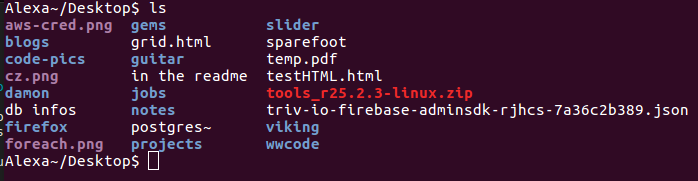
The contents of your directory may not be as colorful as those in the picture.
type $ ls
cd (all OS) - Change Directory
If you are in a directory and want to move into a subdirectory (or even move up a directory), use cd. This is the same as double-clicking a folder in a file explorer.
To move into a subdirectory, type $ cd [DIRECTORY NAME]
To move into the direct parent directory, type $ cd .. (that's cd with two dots)
Note: For Mac and Linux, directory and file names are case-sensitive. Documents is not the same as documents.
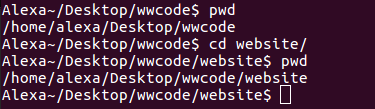
In the following picture, I print my initial working directory, pwd. Then I change directory, cd, to a folder within the directory I am in. When I pwd the next time, I am in a new working directory.
type $ pwd and make note of your directory
type $ ls and look for a directory within your current directory
type $ cd [name of directory you found]
type $ pwd and make note of your new working directory
type $ ls to verify that, indeed, you are in a different folder with different contents
type $ cd .. then pwd. You should be back in your original directory.
mkdir (all OS) - Make Directory
Sometime you will want to make a whole new folder to store your awesome new files. This is where mkdir comes into play.
$ mkdir [name of new directory] is equivalent to clicking the new folder icon and naming the new folder that appears.
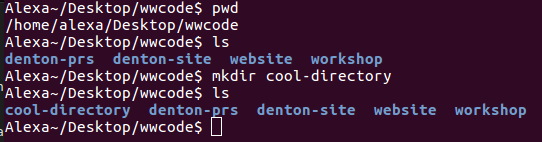
In the following picture, I print my initial working directory, pwd, and list its contents ls. Then I make a new directory named "cool-directory" within my working directory. When I list contents again, ls, the new directory is available.
type $ mkdir cool-directory
type $ ls and notice that "cool-directory" is now listed
type $ cd cool-directory to change working directories to "cool-directory"
type $ ls and notice... nothin'!
It's a brand new empty directory. Let's add a file.
touch (Mac, Linux), type NUL > (Windows) - Make File
Let's say I am in my new directory, cool-directory, and I would like to add a file called index.html so that I can begin typing up some HTML. I would type:
touch index.html if on Mac or Linux
or
type NUL > index.html if on Windows
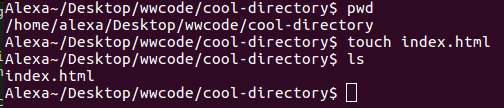
type $ pwd to make sure you are in "cool-directory" that you made in the last exercise
if you are not, use cd to get to the right spot
type $ touch index.html or > type NUL > index.html to create an index.html file
type ls and verify that the file is there
rm (all OS), Remove file
If you need to remove a file, type: rm [filename]

rmdir (all OS), Remove Directory
If you need to remove a directory, type: rmdir [directory name]
Note: If you need to remove a directory that contains other directories, you must use the command rm -rf [directory name]
The -rf signifies that you want to recursively force remove the inner directories
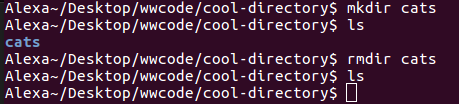
type $ pwd to make sure you are in "cool-directory" that you made in the last exercise
if you are not, use $ cd to get to the right spot
type $ mkdir cat-folder, then check out your handy work with $ ls
type $ rm index.html to get delete the text file
type $ rmdir cat-folder to remove the directory you just made
type $ cd .. to move into "cool-directory"'s parent folder
type rmdir cool-directory — it's been a good run.
Those are the basics that you need to get started, but it's not even close to the versitility of events and programs you can run from the command line.
I recommend spending time outside of this study group with this Command Line Crash Course.
Run through all of the mini exercises above until you are comfortable navigating around with just a terminal.
Move on when you're ready!